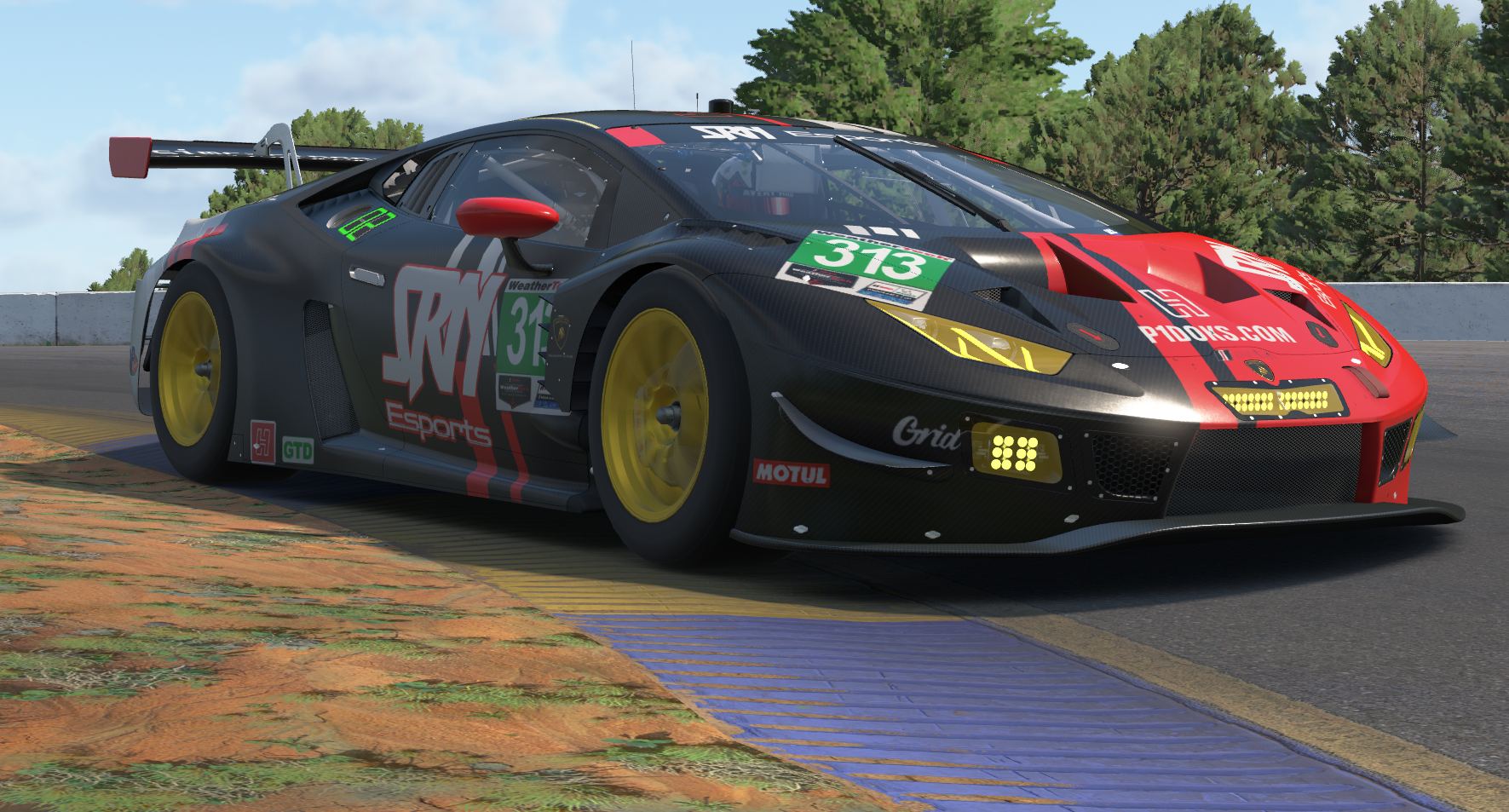
Racing in VR makes it much easier to judge braking distances and look through tight corners in iRacing. Still, if your OpenXR settings or in-game graphics are off, distant brake boards look blurry and frame drops on crowded starts quickly get in the way.
Getting a clear picture down the track without bogging down your graphics card comes down to launching in OpenXR mode and changing a few key settings.
Choose OpenXR in the top-right corner of the iRacing UI instead of running through SteamVR, and keep your headset software at 100% resolution so you are not doubling up on resolution scaling.
In iRacing's graphics settings, set MSAA to 4x with the Sharpness box checked, and set Anisotropic Filtering to 16x so curbs and distant brake boards stay easy to read.
Set Dynamic Cubemaps to 0, turn off Grandstand Crowds, and limit visible pit road cars to 20 so your frame rate stays steady on full race starts.
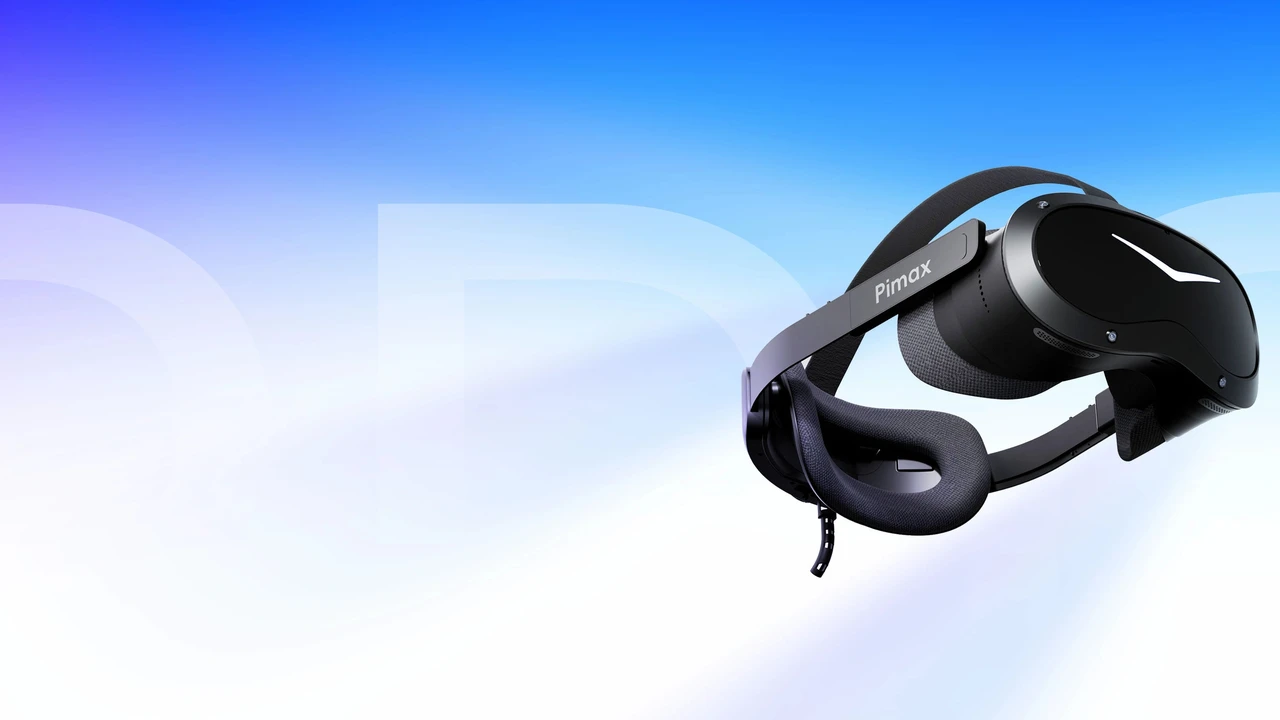
Headsets with older Fresnel lenses get blurry as soon as you glance toward your mirrors or dash without turning your head. PCVR headsets with glass aspheric lenses like the Pimax lineup stays clear across the whole lens. Sim Racing Nation readers can save at the Pimax Store with code SRN at checkout.
Test Before Joining a Race
Try your VR settings in an AI race or a busy practice session before signing up for an official race. Once your brake boards are clear and your frame rate holds steady in traffic, you can focus on driving.