On the PC, sim racing, dropping from 120 FPS to 80 FPS during a crowded race start is mildly annoying. In VR, that same frame drop can cause screen stutter, visual tearing, and instant motion discomfort.
Maintaining a rock-solid 90 FPS (or 120 FPS) requires managing your GPU headroom so your PC can handle heavy race starts without dropping a single frame.
Understanding Supersampling Overhead
VR lenses require barrel distortion correction, which means rendering at a higher pixel density than the physical display panel. If your headset panel is 2880x2880 per eye, rendering at 150% supersampling pushes over 24 million pixels every single second. Even a top-tier GPU will struggle under that load when rain or night lighting kicks in.
Locking in Headroom for Grid Starts
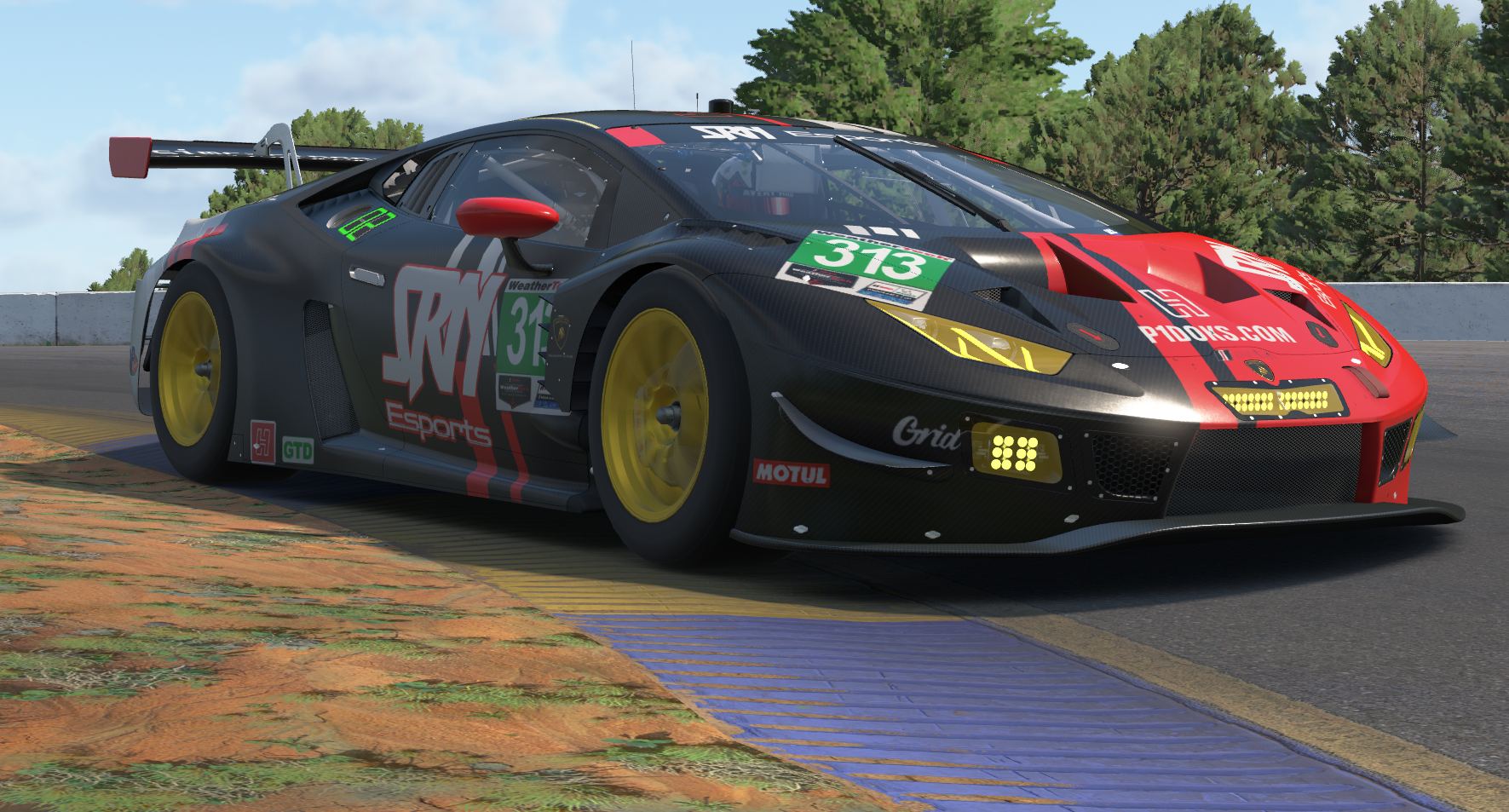
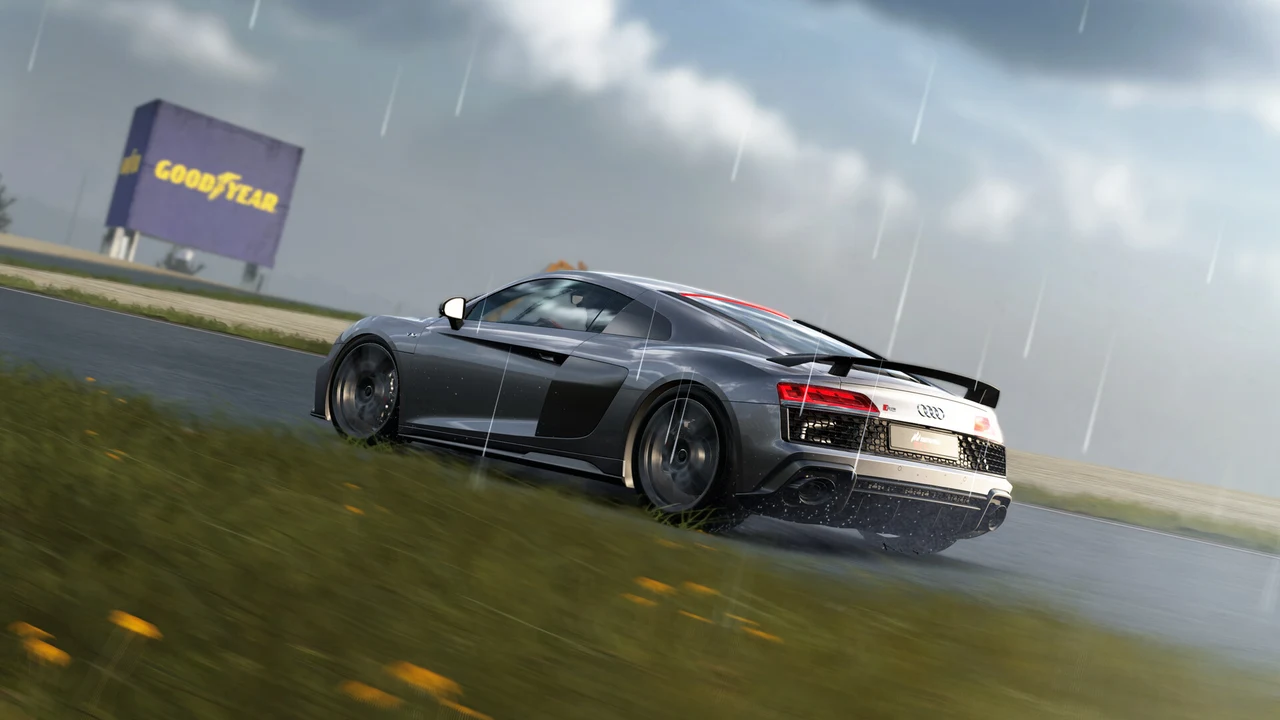
Always calibrate your VR graphics settings on a grid packed with 30 AI cars or a packed grid online in rainy conditions. If your framerate holds steady at 90 FPS with 20% GPU headroom during the standing start, you are guaranteed flawless performance when racing online.
Prioritize Framerate Over Post-Processing
Turn off cockpit bloom, volumetric smoke, and crowds if the game let's you. These visual effects chew up immense GPU shader power without helping you spot braking markers.
Smooth Performance Equals Fast Laps
Consistent framerates allow your eyes to track braking points and passing cars naturally. Prioritize smooth 90 FPS delivery over excessive graphic sliders, and your VR racing experience will be completely transformative. In the end, you rarely go on a sightseeing tour and spend most of your time staring at the back of another car or the apex ahead.