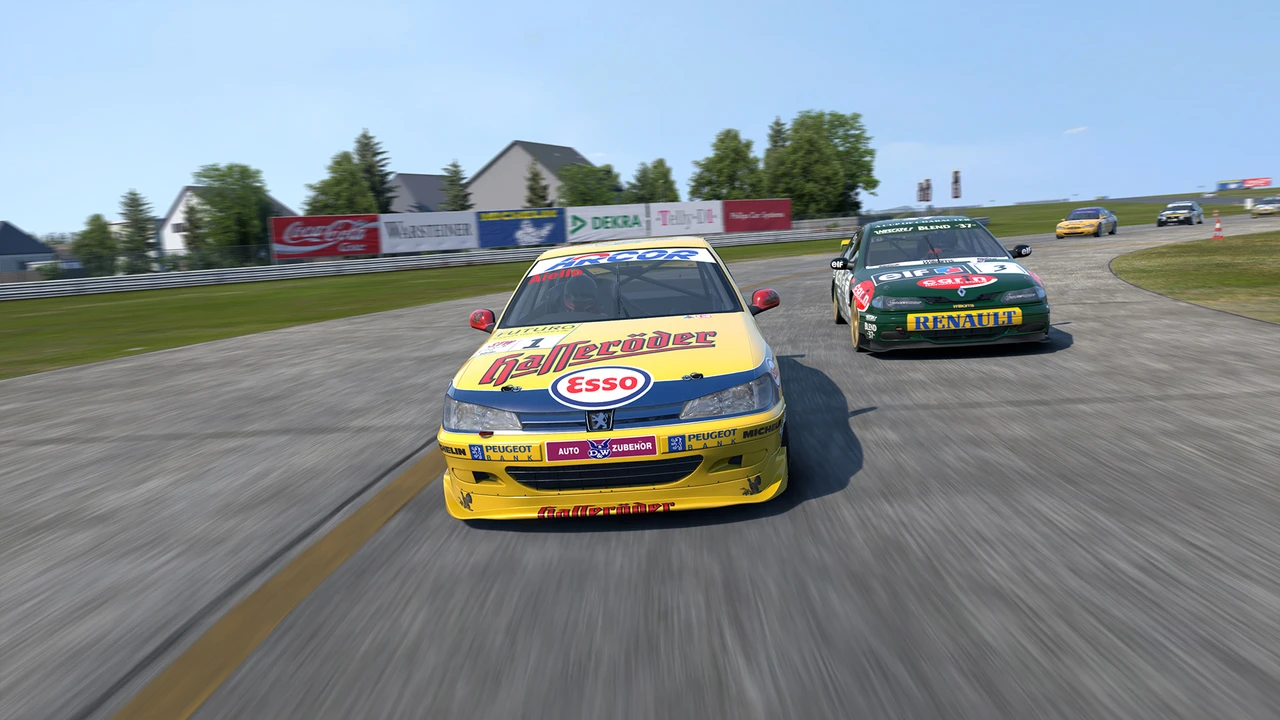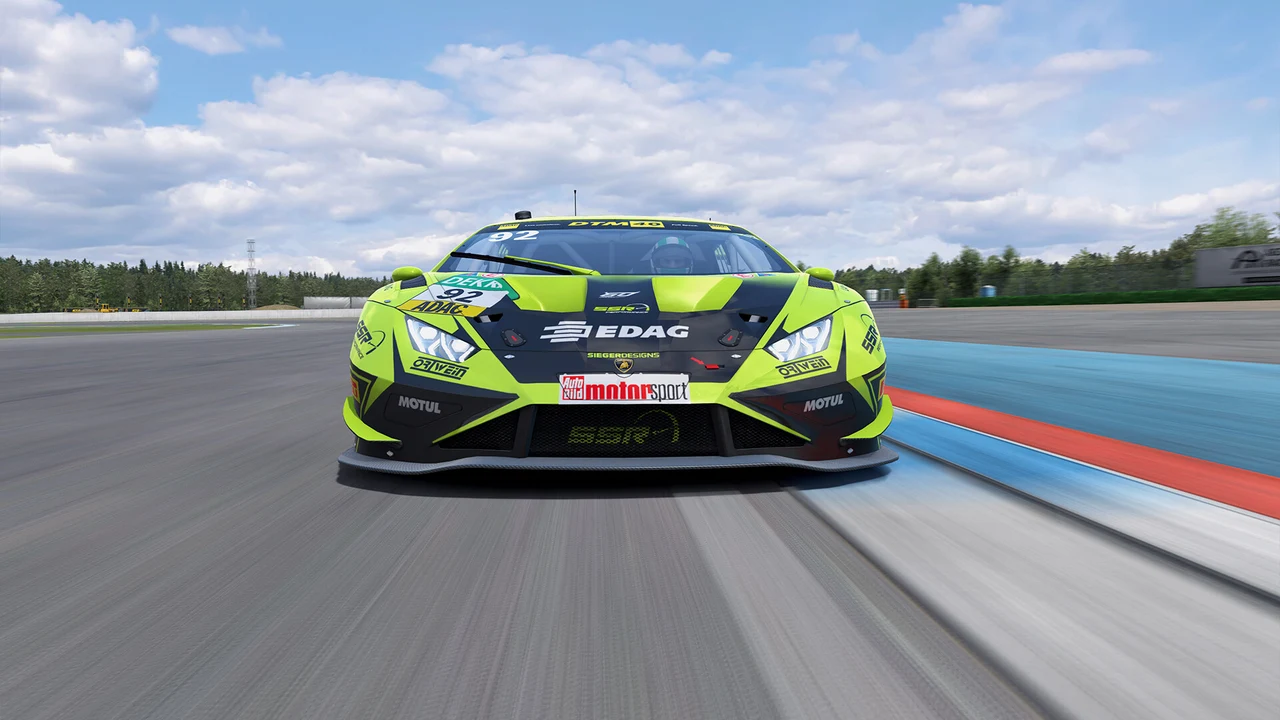
Since KW Studios rolled out RaceRoom VR performance mode without eye tracking, Virtual Reality drivers finally have a native pathway to run full touring car and GT3 grids without running through SteamVR's heavy compositor layer. Getting a rock-solid 90 FPS from lights-out through Turn 1 comes down to three settings inside your Steam launch options and in-game video menu.
When you bypass SteamVR and run native OpenXR alongside Fixed Foveated Rendering (FFR), your graphics card stops wasting shading power on the far outer edges of your lenses and puts every millisecond of frame time into the center of your vision where you spot brake markers and apex curbs.
Right-click RaceRoom Racing Experience in Steam, open Properties, and select the native 64-bit OpenXR VR launch option (or pass -vr openxr). For high-clarity DisplayPort headsets from Pimax like the Crystal Light and Crystal Super, this cuts out extra frame buffering and sharpens head-tracking response.
Inside RaceRoom's VR graphics settings, enable Fixed Foveated Rendering. Start on the Balanced preset, which keeps the inner 55% of the lens at full 1:1 pixel density while stepping down the outer periphery to 1/4 and 1/16 shading rates. On a 30-car grid in the 2026 Alpine Sim Racing Series, switching from Off to Balanced typically recovers 18% to 25% of GPU frame time.
Even with FFR active, CPU draw calls can bottleneck your frame pacing on standing starts. Cap visible opponents to 16 or 18 cars, set Car Shadows to Low, and turn Rearview Mirror Quality to Medium so your main thread stays ahead of the 11.1ms budget required for 90 Hz headsets.
Pairing Visual Clarity With Crisp Force Feedback
Once your framerate is locked at 90 FPS without motion reprojection kicking in, your eyes pick up mid-corner rotation much earlier. Combine these VR settings with our guide on dialing VR render resolution for stable framerates and the recent RaceRoom historic force feedback update to feel every curb strike cleanly.